

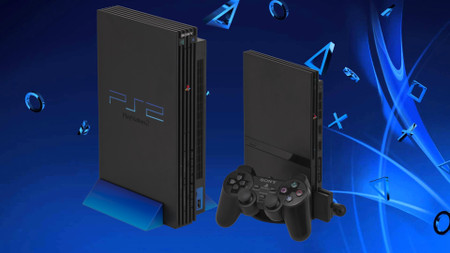
🎮 How to Convert Any Storage Device into PS2 Plug & Play Game Drive
Transform your old USB drives, external hard disks, or SD cards into dedicated PlayStation 2 game libraries! This comprehensive guide will show you how to create a portable PS2 game drive that works like plug-and-play—no modding required, just connect and play your favorite classics anywhere.
📋 Table of Contents
- What You'll Need
- Choosing the Right Storage
- Formatting Your Storage Device
- Downloading PS2 Games (Legally)
- Preparing Game Files
- Transferring Games to Your Drive
- Setting Up OpenPS2Loader (OPL)
- Using USBUtil for Game Management
- Advanced Management with OPL Manager
- How to Play Games
- Troubleshooting Common Issues
⚡ What You'll Need
Essential Requirements:
- USB drive (32GB minimum, 128GB+ recommended)
- External HDD/SSD (compatible with PS2 via USB)
- FreeMCBoot or FMCB memory card
- OpenPS2Loader (OPL) software
- USBUtil application
- Windows/Mac/Linux computer
💡 Pro Tip: For best performance, use USB 3.0 drives or external SSDs. Traditional hard drives may have longer loading times.
💾 Choosing the Right Storage
Storage Options Ranked by Performance:
- External SSD (USB 3.0+) → Fastest loading times, best compatibility
- USB 3.0 Flash Drive (128GB+) → Great balance of speed and portability
- External HDD (7200 RPM) → Good capacity, moderate speed
- SD Card with USB Adapter → Convenient but slower loading
⚠️ Important: PS2 USB ports are 1.1 speed, but faster storage still provides better performance due to better controllers and flash memory.
🛠️ Formatting Your Storage Device
Step-by-Step Formatting Guide:
- Connect your storage device to your computer
- Open Disk Management (Windows) or Disk Utility (Mac)
- Delete all existing partitions
- Create a single primary partition
- Format as FAT32 (essential for PS2 compatibility)
- Set allocation unit size to 32KB or 64KB
- Label the drive as PS2GAMES for easy identification
🔧 For drives larger than 32GB: Use tools like FAT32 Format or GUIFormat to format large drives as FAT32.
📥 Downloading PS2 Games (Legal Backups)
Important Disclaimer: Only create backups of games you legally own. These resources are for preserving gaming history and creating personal backups.
Recommended Game Sources:
- Vimm's Lair:
https://vimm.net/vault/PS2- High-quality ISOs
- Good download speeds
- Verified clean files
- Myrient:
https://myrient.erista.me/files/Redump/Sony%20-%20PlayStation%202/- Redump verified images
- Extensive collection
- Organized alphabetically
🎯 Preparing Game Files
Supported File Formats:
- ISO - Direct disc images (recommended)
- BIN/CUE - CD-based PS2 games
- ELF - Homebrew applications
File Structure on Your Drive:
PS2GAMES/
├── DVD/
│   ├── Game1.iso
│   └── Game2.iso
├── CD/
│   └── Game3.bin
└── ART/
    ├── Game1_COV.jpg
    └── Game2_COV.jpg
📤 Transferring Games to Your Drive
Manual Transfer Method:
- Create folders:
DVDandCDin the root directory - Place DVD games in
DVDfolder - Place CD games in
CDfolder - Ensure filenames are simple (no special characters)
- Eject safely before disconnecting
⏱️ Transfer Time: A 4GB game takes approximately 15-20 minutes via USB 2.0, faster with USB 3.0.
⚙️ Setting Up OpenPS2Loader (OPL)
OPL Installation Steps:
- Download latest OPL version from:
https://www.ps2-home.com/forum/ - Extract the OPL ELF file to your FreeMCBOOT apps folder
- Create an
OPLfolder on your storage device - Inside OPL folder, create:
ART,CFG,THMsubfolders - Configure OPL settings for USB mode
OPL Settings Configuration:
- Set default device to USB
- Enable USB Auto Game Start
- Configure GSM for resolution options
- Set up VMC (Virtual Memory Cards)
🛠️ Using USBUtil for Game Management
USBUtil Features:
- Automatic game organization
- Cover art downloading
- Game information database
- Batch processing
Download: https://www.ps2-home.com/forum/download/file.php?id=2692
USBUtil Setup:
- Extract USBUtil to your computer
- Connect your PS2 game drive
- Point USBUtil to your game ISO folder
- Let it scan and organize your collection
- Use it to download cover art automatically
🎨 Advanced Management with OPL Manager
OPL Manager Download: https://oplmanager.com/site/index.php
Key Features:
- Automatic cover art and background downloads
- Game title standardization
- VMC (Virtual Memory Card) management
- Cheat code integration
- Theme customization
Setup Process:
- Install OPL Manager on your computer
- Connect your PS2 game drive
- Set the path to your OPL folder
- Scan for games and let it download all artwork
- Transfer the updated OPL folder back to your drive
🎮 How to Play Games
Plug & Play Process:
- Insert FreeMCBoot memory card
- Connect your prepared game drive to PS2 USB port
- Turn on PlayStation 2
- Launch OpenPS2Loader from browser menu
- Select your game from the list
- Press X to start playing!
🔄 Hot Swapping: You can safely swap drives while the PS2 is off to access different game libraries.
🔧 Troubleshooting Common Issues
Game Won't Start:
- Check file format (must be ISO or BIN/CUE)
- Verify FAT32 formatting
- Try different USB port on PS2
- Update OPL to latest version
Slow Loading Times:
- Use defragmentation tools on HDDs
- Try different storage device
- Enable mode 1 or mode 6 in OL game settings
Games Not Showing in List:
- Check folder structure (DVD/ and CD/ folders)
- Ensure proper file naming (no spaces/special chars)
- Refresh game list in OPL settings
🌟 Pro Tips for Optimal Experience
- Multiple Drives: Create themed drives (RPG Drive, Racing Drive, etc.)
- Backup Saves: Regularly backup memory card data
- Community Support: Join
psx-place.comfor latest updates - Portable Setup: Use small USB drives for travel-friendly gaming
✅ Conclusion
Converting storage devices into PS2 game libraries is a game-changer for retro gaming enthusiasts. With this plug-and-play system, you can carry hundreds of games in your pocket and play them on any compatible PS2. The process might seem technical at first, but once set up, it's as simple as connect-and-play.
Remember to always respect copyright laws and only create backups of games you legally own. Happy gaming!
Useful Resources:
- PS2-Home Forum:
https://www.ps2-home.com/forum/ - PSX-Place:
https://www.psx-place.com/ - OPL Manager:
https://oplmanager.com/
